Welcome to your Patient Portal! This guide will help you create your account, log in, and use
the portal to manage your health information.
1. How to Register for the Patient Portal
You can register for the portal in two ways:
Option 1: Self-Registration
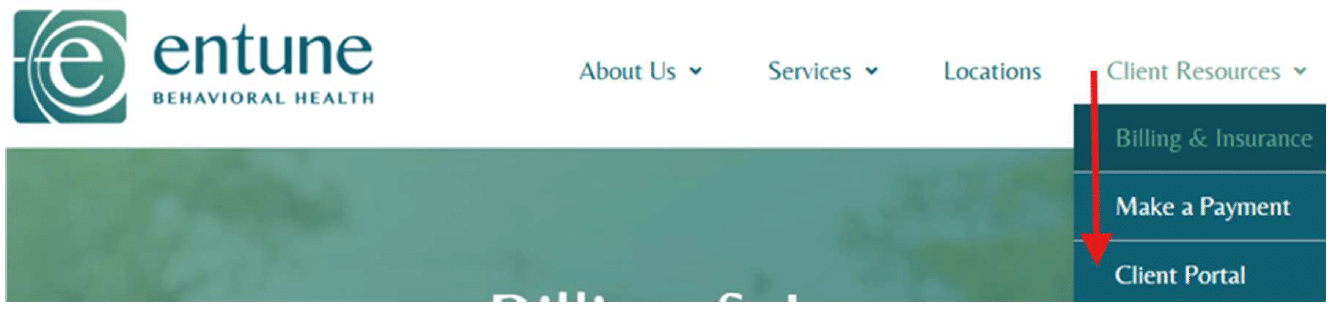
1. Go to the Entune website at entunebh.com, hover your mouse over “Client Resources”,
and select “Client Portal”
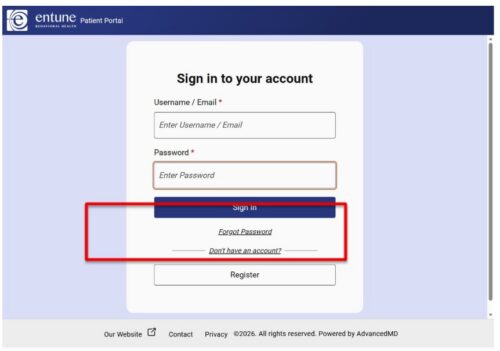
2. Click Register at the bottom and fill out the required information and click Register on new page
3. Fill out the required information and click Register on new page
You’ll receive an email with a link—click it to complete your registration. Make sure the name and email you enter match what your provider has on file at Entune.
You will be prompted to complete Multi-Factor Authentication (MFA), skip option 2 below to view MFA steps.
Option 2: Registration Through Email Invite
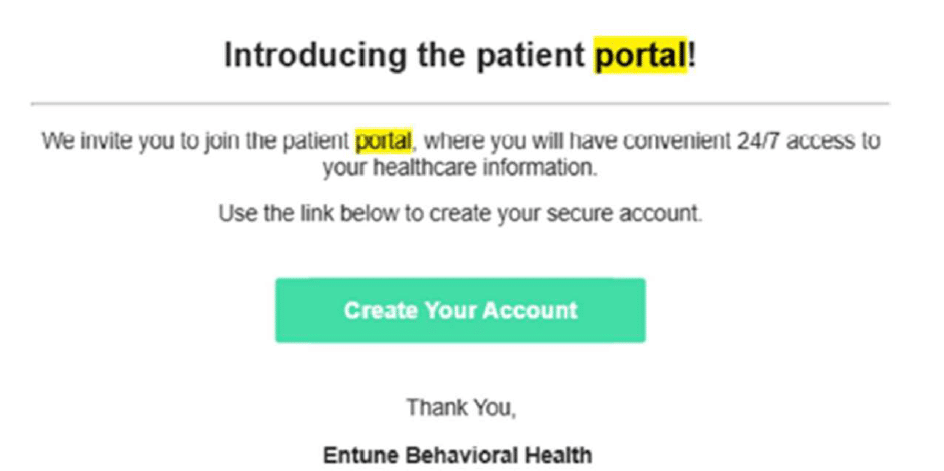
1. You may have received a portal invitation in your email from Escalera Health, LLC <noreply@advancedmd.com>. Open the email and click the registration link.
2.Set your new password (minimum 8 characters, including uppercase, lowercase, number, and special character).
3. Confirm your identity with either:
Date of birth
Last 4 digits of your SSN (if required)
4. Agree to the Terms & Conditions.
5. Click Register to activate your account. This link will expire- time-sensitive.
6. You will be prompted to complete Multi-Factor Authentication (MFA), skip “option 2 below to view steps.
2. Multi-Factor Authentication (MFA)
MFA helps keep your account secure.
Setting Up MFA (First Login)
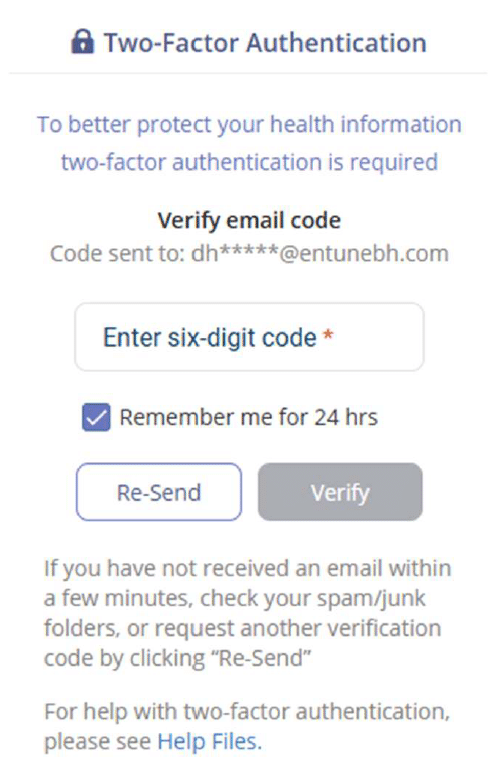
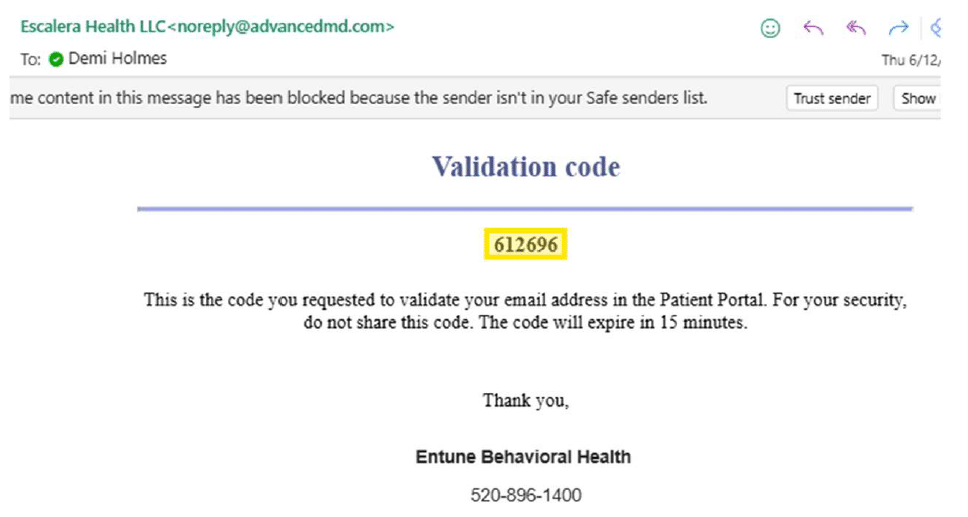
1. After registering or logging in, you’ll be asked to verify your email.
2. Go to your email inbox for the 6-digit code emailed to you.
3. Write down or copy the code.
4. Return to the website screen, enter the code, and click “Verify” to continue to access your account.
Tip: You can choose to skip this step for 24 hours by keeping the “Remember me for 24hrs” box checked.
3. Forgot Your Password
1. Go to the Patient Portal login page. 2. Click Forgot Password. 3. Enter your email and click Send New Password. 4. Check your email and click the reset link.
4. What You Can Do in the Patient Portal
Here’s what you can access and manage from your portal:
Update Messaging Preferences
Ask a Question
Receive Messages
Request Appointments/providers
Upload Documents
Request Prescription Refills
View Health Records/ Download or Send Your Records
Submit and Sign Forms
Need Help?
If you have trouble accessing your portal, updating your information, or have other questions, contact Entune at (520) 896-1400 for assistance.